A Drag n Drop Form Builder


In this post I will cover how to highlight specific dates in Jquery UI Datepicker. It pretty simple actually, we will add a custom CSS class to particular dates and then style those particular dates.
Here are steps which we will be following to highlight particular dates in datepicker:

In my last post, we have studied the basics of Google Chart. Google Charts helps us display the dry-data in a very beautiful visualization.
If you look around the web, you’ll find that there is a lot of buzz about Google charts but there are not many tutorials which demonstrate how to use Google Charts. So I came up with this tutorial.
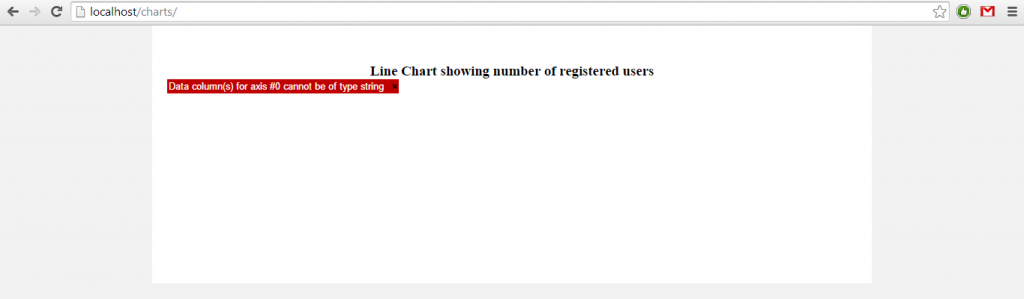
In this tutorial I will share how to create time user graph using Google Charts , PHP and MYSQL. Here are the steps :
jsapi .corechart.getData() function, we will retrieve an array of data and will push the data in the drawChart() method.drawChart() method, we will push the array data to tables and will draw line chart with the data.For this tutorial we will be using a DB table as a data source. The table contains users and their date of registration. Here, we will display the number of registered users on a particular date. Lets start with the tuorial:

The most common requirement over the modern web applications is upload image, crop as required or resize it, whether for profile picture use or any other use in photo galleries (small and bigger image) or as thumbnails. This post is going to be very interesting for the beginners who haven’t played with images for web applications and others can use this as a reference for the awesome web applications. We will cover all the basic requirement and we have also provided the source code for direct view of the output which you can use in every day situations. A small definition of cropping from Wikipedia:
Cropping refers to the removal of the outer parts of an image to improve framing, accentuate subject matter or change aspect ratio.
Before we begin, I will briefly discuss the concept behind cropping an Image.
We will use a combination of Jquery and PHP to achieve our goal. More specifically we will utilize the imgAreaSelect jQuery plugin. We will also utilize Image functions specific to PHP.
Here is what we will be doing
Note: We assume that you have basic PHP programming knowledge, and your server is up and running. We are also assuming that you have knowledge of how to upload image using PHP.Continue Reading

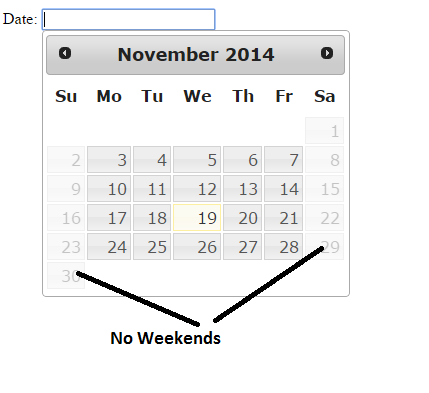
In my last post I talked about how you can disable past dates in Jquery datepicker. In this post I will discuss various methods for disabling dates in Jquery Datepicker.
More specifically I will be covering following cases
We will be utilizing the beforeshowday function throughout this tutorial.Continue Reading

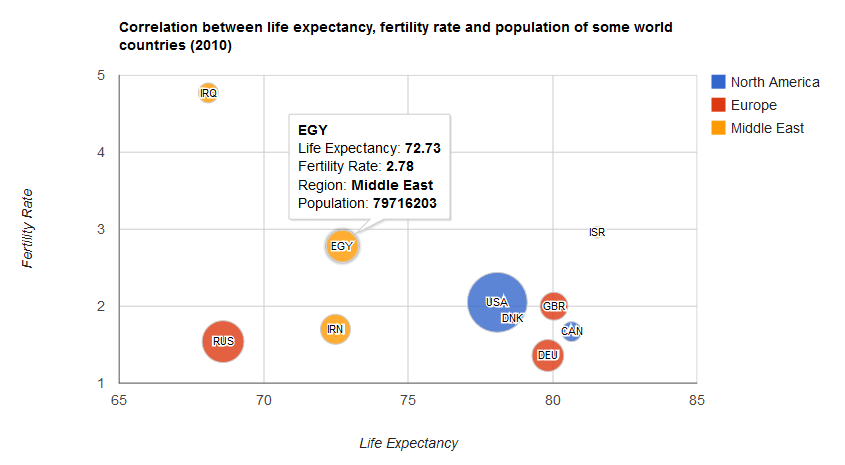
Today, we will experience another great application of Google i.e. Google Charts. Before we go into deep, lets find out what exactly charts are? I am not going to make things complex here, since Wikipedia has already provided us a neat and clean definition of Charts.
From Wikipedia
A chart is a graphical representation of data, in which “the data is represented by symbols, such as bars in a bar chart, lines in a line chart, or slices in a pie chart”. A chart can represent tabular numeric data, functions or some kinds of qualitative structure and provides different info. (1)
Google Charts provides a way to dynamically render data through different visualizations on your website. Google is providing a large number of available charts ranging from simple line charts to complex hierarchical tree maps, you can view all available charts from Google Chart Gallery. (2)
The most usual way to apply Google Charts is with mere JavaScript that you embed in your website. All you have to do is load some Google Chart libraries, list out the data that needs to be graphed, customize the chart with the available options, and at last make a chart object with an id or class that you may choose. Afterwards in the website, you have to define a <div> with that id or class to show the Google Chart.Continue Reading
In this post I will share a simple technique to disable past dates in Jquery DatePicker.
Use the following snippet and it will set today as the minimum selectable date.
$("#datepicker").datepicker({ minDate:0});
The minDate parameter is used to set a minimum selectable date. Passing ‘0’ will tell datepicker to set minimum selectable date ‘0’ days from today. In other words, it disable all past dates.
Similarly passing ‘5’ will set minimum date as 5 days from today.
Another point to note is that the calendar picks todays date from system’s settings. So users in different timezones might get different minimum selectable date.
Update: We have posted a more thorough guide on disabling dates in jQuery DatePicker.

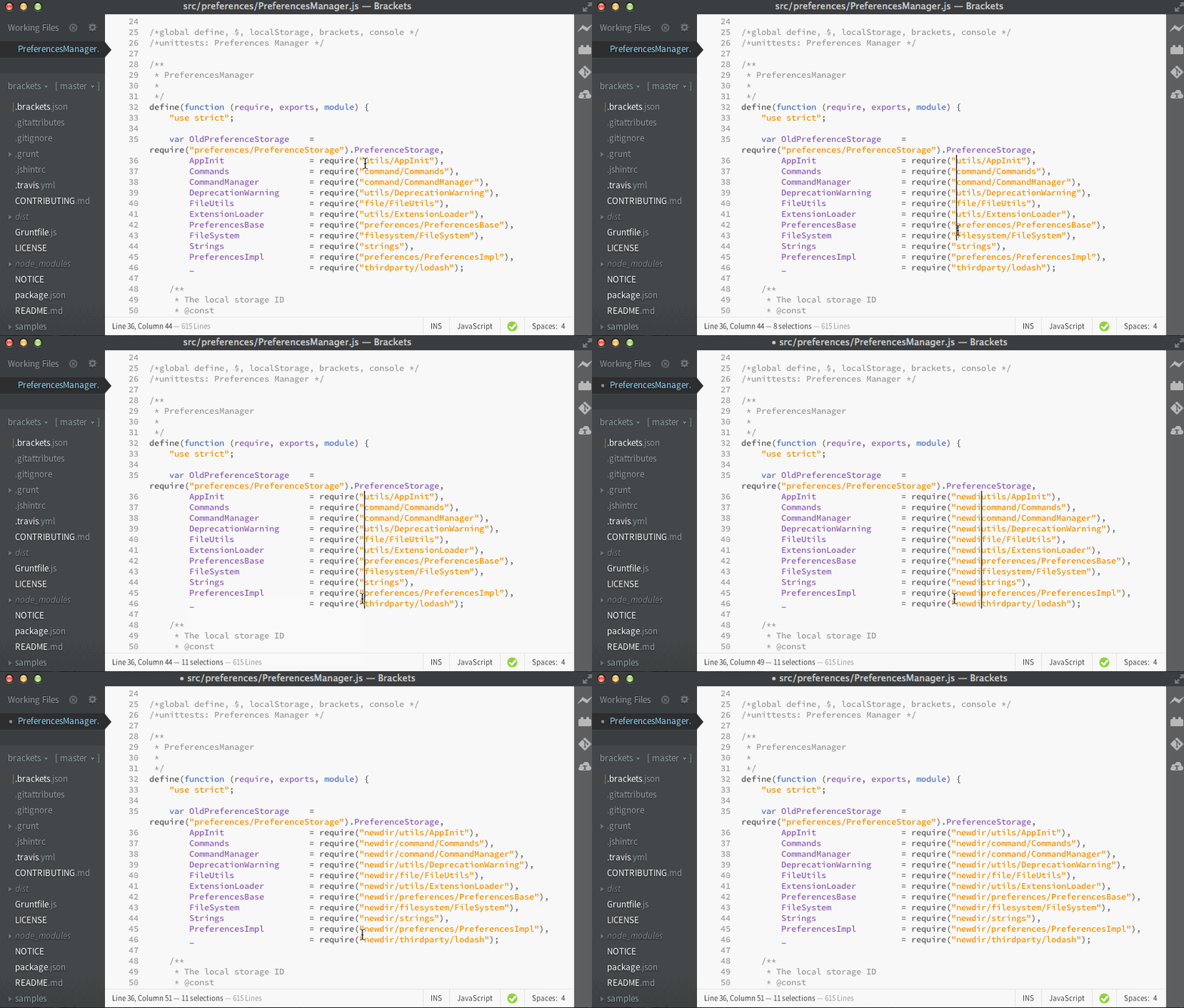
Adobe has just launched version 1.0 of Brackets, its free open-source text editor that is built in HTML, CSS and JavaScript, for writing coding in HTML, CSS and JavaScript.
Brackets started as an open-source project over three years ago, and developers who want to customize the text editor to fit their motives can pull the source code from the app’s Github project page and alter it as they wish, and add their changes for others to use.
Currently, Brackets 1.0, as well as a preview of Extract for Brackets (an extension that Adobe itself has been working on) are available for Windows, Mac and Linux. Brackets is targeting mainly at Web developers (front-end) and designers. They are offering interesting features like inline editors (select and press ctrl + E / push command) will show inline window to update particular code without pop-ups or additional tabs, Live Preview to see instantly changes on screen and view CSS selector for quick edits and built in support for preprocessors.
They are building fresh features and enhancing the existing one for better user experience. Download Brackets, and explore the excellent stuff.Continue Reading

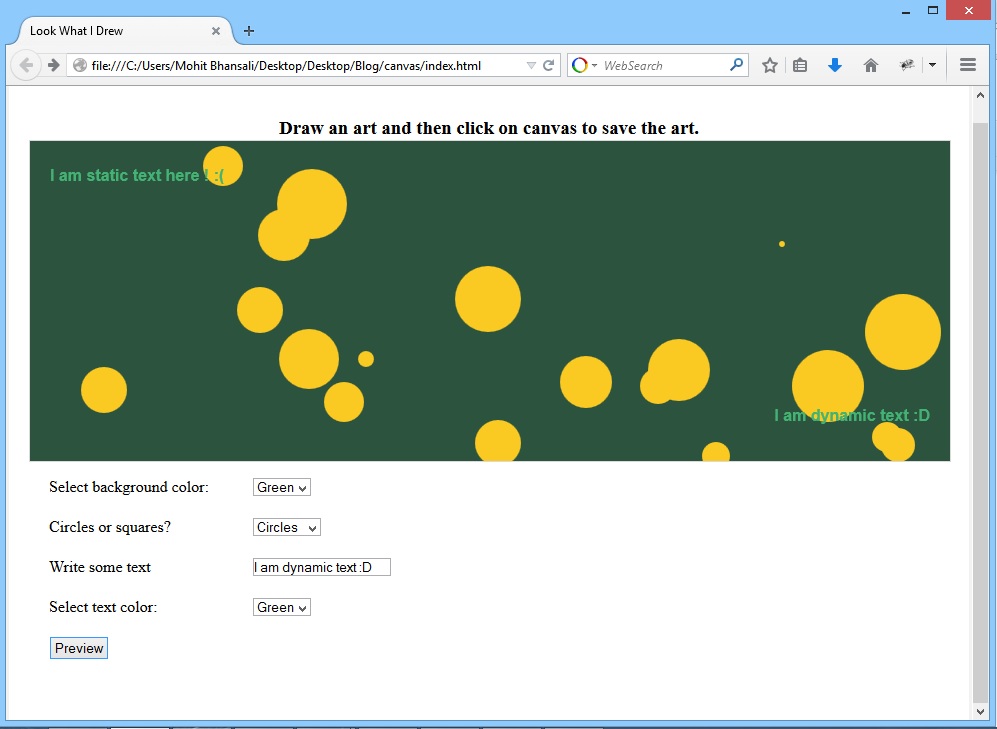
Canvas is one of the most interesting additions to web pages by HTML5. In some ways, a canvas is like an <img> element. You can add a canvas like this:
<canvas id=”art-board” width=”920px” height=”320px”> </canvas>
And the browser allocates some space in the page for the canvas, with the width and height you have specified.
The HTML5 Canvas element is an HTML tag similar to <div>, <table> that allows user to draw graphics such as lines, squares, circles, etc. via scripting (usually, JavaScript) directly into an allocated canvas block element that appears on the web page. Since you can draw an image on a canvas, you can also to erase and re-draw all or a portion of the canvas image. There are a number of transformations and effects that you can apply to your canvas drawing.
Note: The <canvas> element is just a container for graphics. You need add a script to actually draw the graphics. We will show you how, don’t worry!
In much the same way that you might draw an image using a graphics program like Adobe Photoshop or paint, save it to a file, and load it onto a web page. With canvas you can automate through code and the drawing commands, and immediately see the results on the web page, without the need for an loading an external file. This capability allows you to do many sophisticated things that were once difficult or impossible to do, such as dynamically creating preview images.Continue Reading
Displaying date and time in JavaScript has never been an issue but manipulating them has never been an easy task. Earlier, programmers manually made date/time realted calculations but with time, analytics became important, with demand for more complex calculations. To match up those modern requirements, we have Moment.js.Continue Reading